I. Video Operation Details

II. Graphic Operation Details
-
Download CapCut Templates
1.1 Go to the video platform, enter the CapCut Templates section to find a template.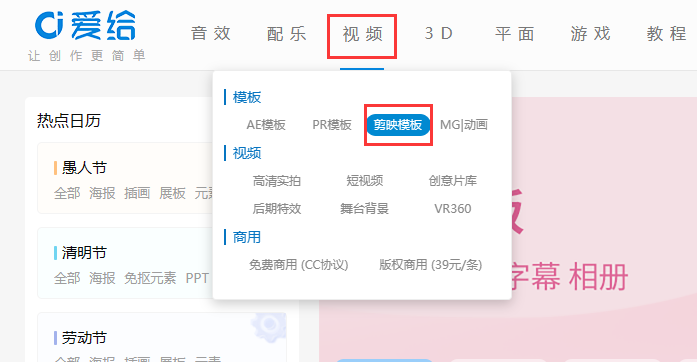
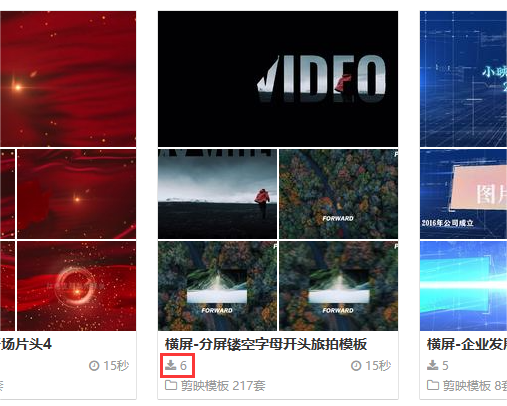
1.2 Download the template and extract the compressed file into a folder.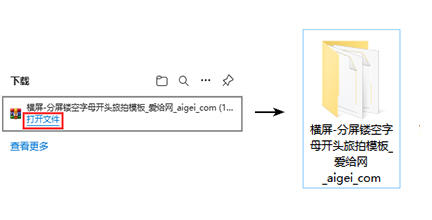
-
Import the Template into CapCut
2.1 Open the CapCut Drafts folder, click the settings icon in the upper right corner, then select Global Settings.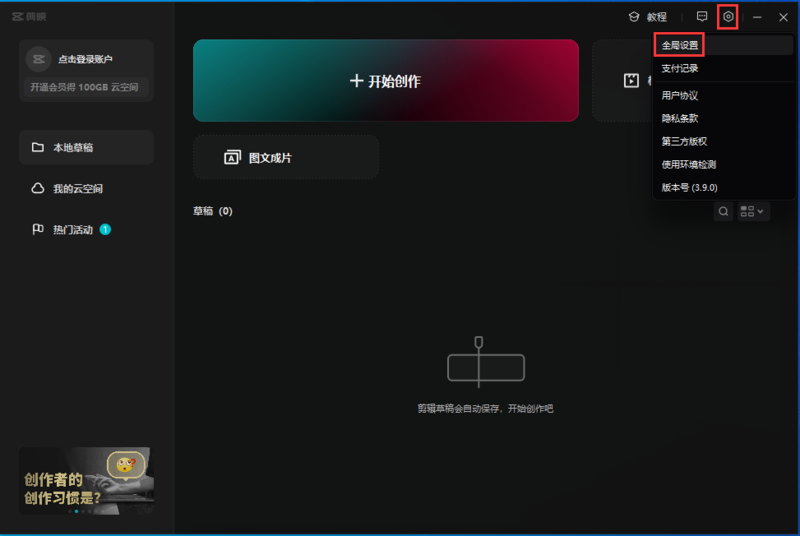
2.2 Move the CapCut template folder to the CapCutPro Drafts directory.
Method ①: Click the folder icon in the Draft Location section, and drag the template folder directly into the CapCutPro Drafts folder pop-up.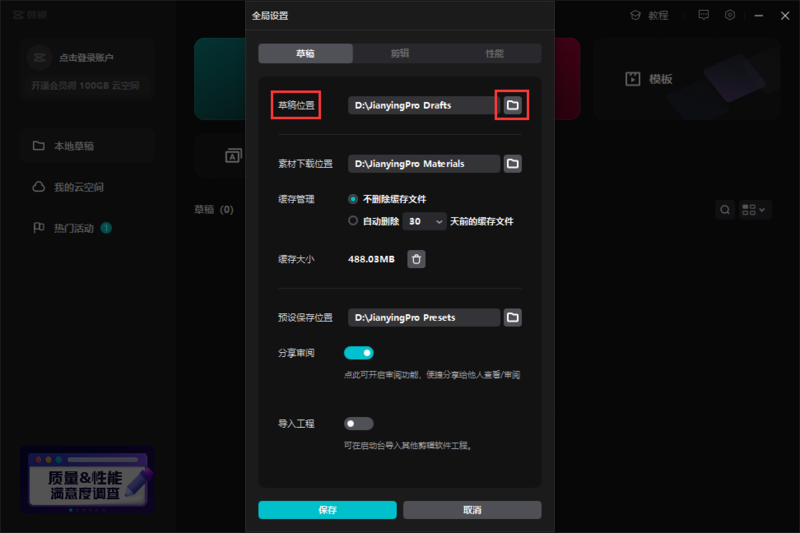
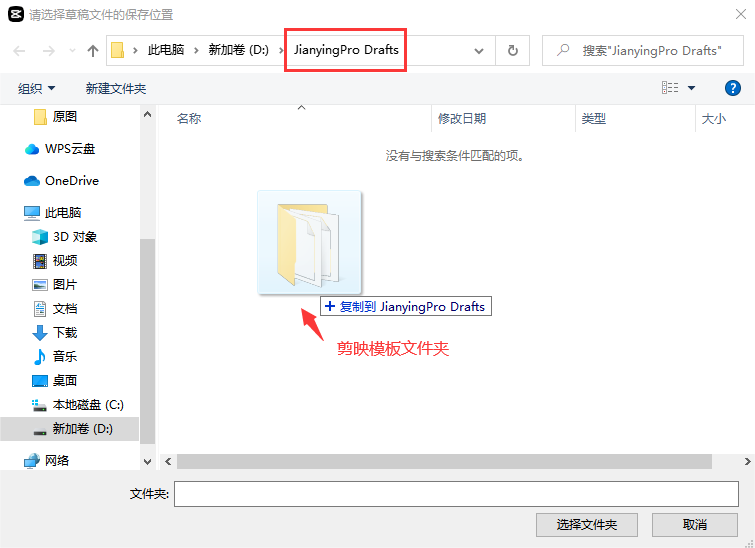
Method ②: Note the file path of the CapCutPro Drafts folder in the Draft Location section, open it in File Explorer, and move the template folder into it.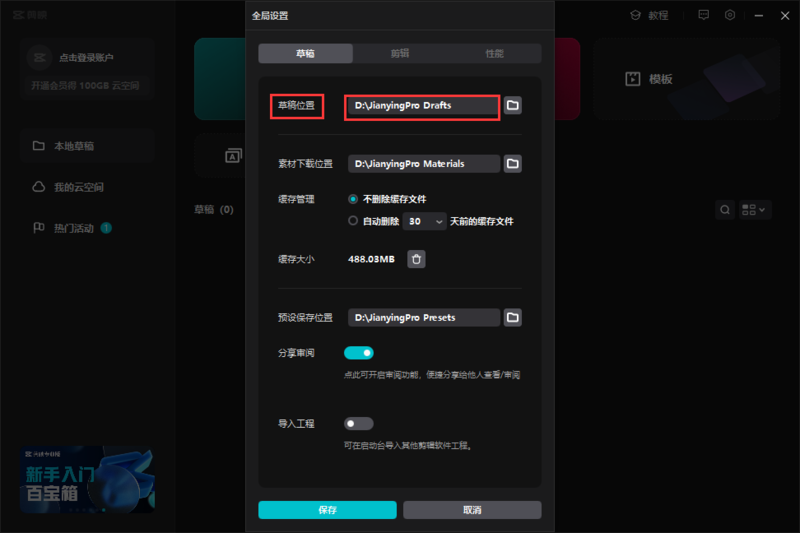
Method ③: Right-click the CapCut software icon, select “Open File Location,” enter the CapCut software directory, find the CapCutPro Drafts folder, and move the template folder into it.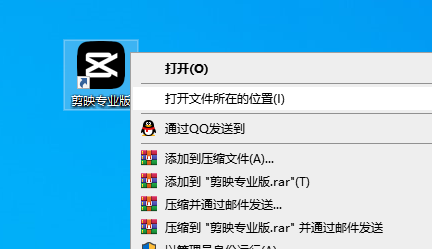
-
Open the Template in CapCut
3.1 Return to the CapCut Drafts page.
The template will be automatically imported without restarting the client. Simply return to the drafts.
If the template is not automatically imported, try restarting CapCut or check the folder moving path.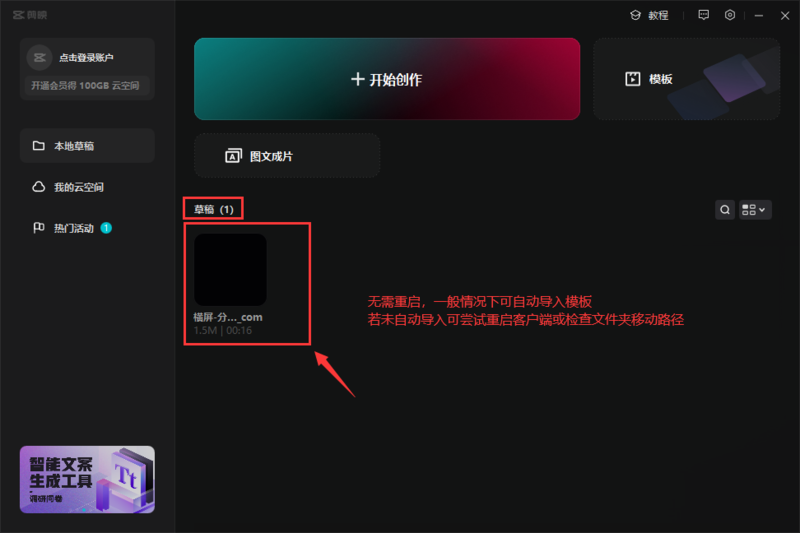
3.2 Open the template.
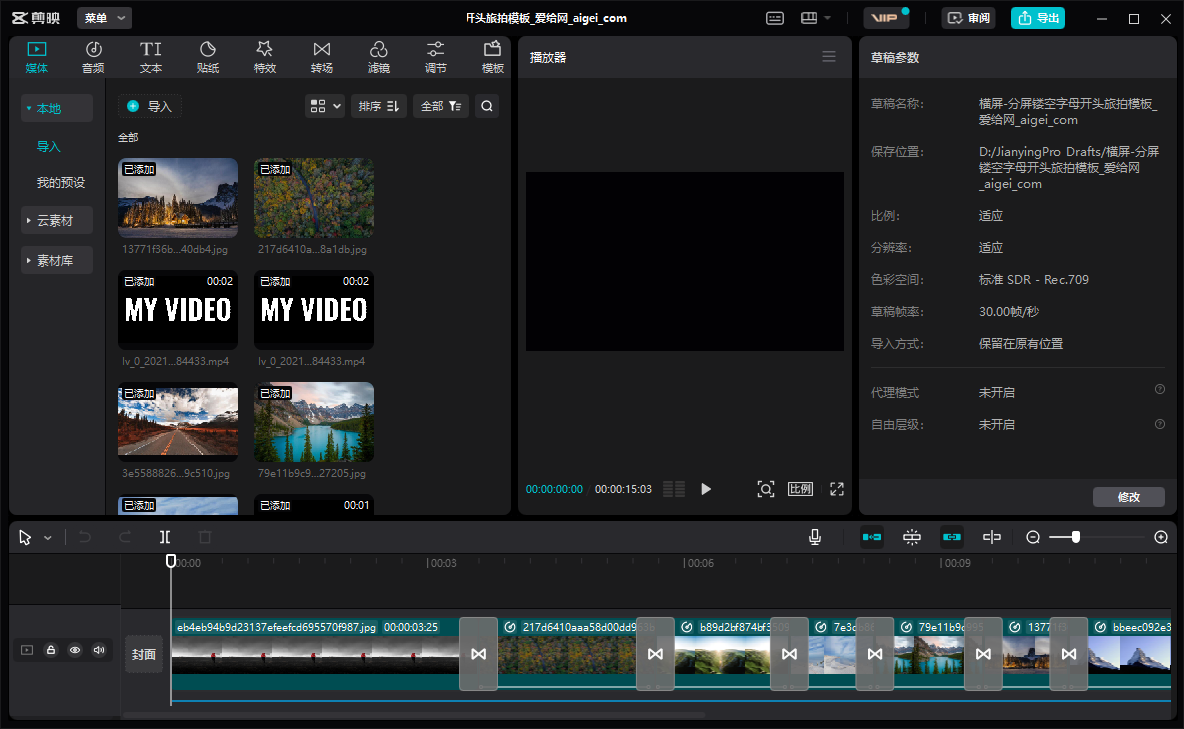
Click on the template to enter the editing page and start using it.